ComputeriPhone
From your computer to iPhone
Receive a file, photo or video on your phone.
- 1
Get both on the same Wi-Fi
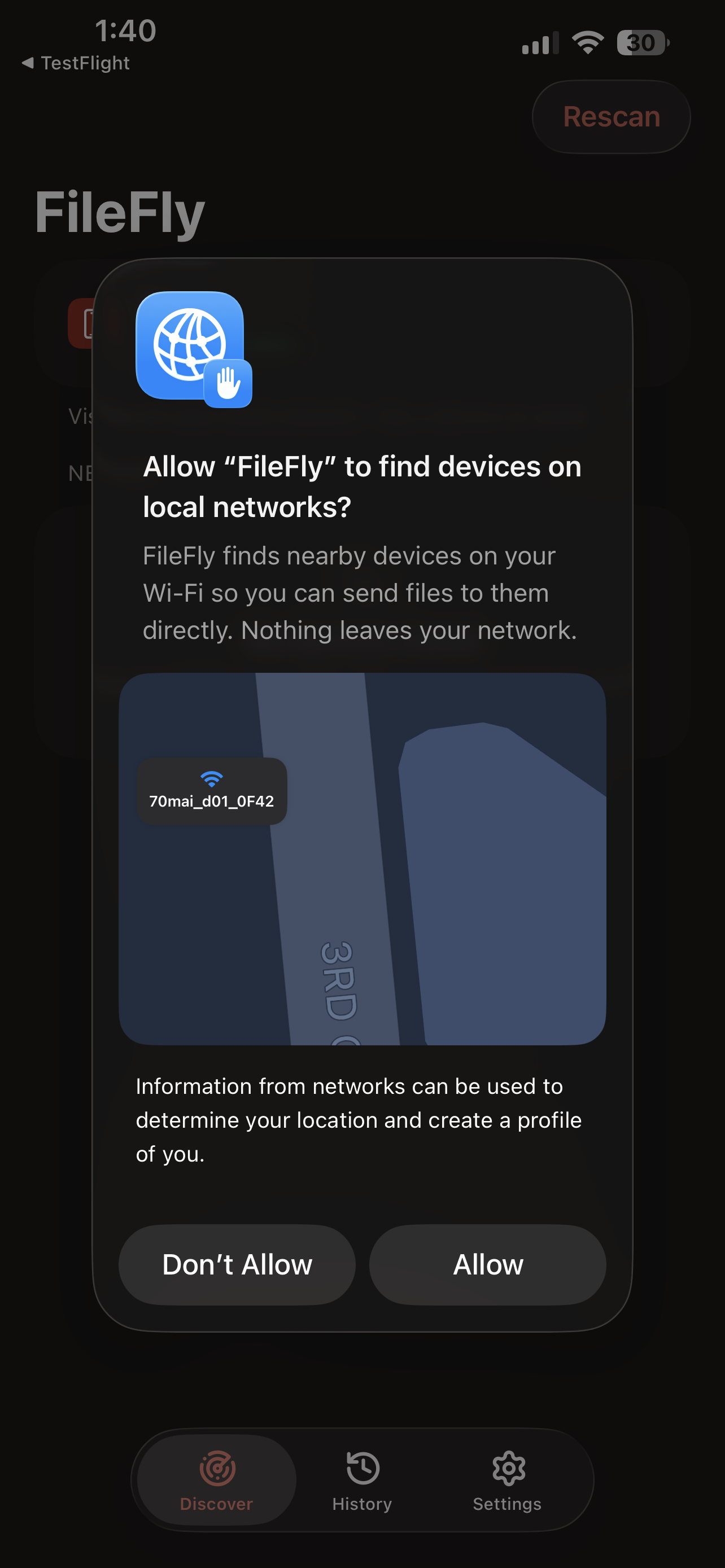
Use the same Wi-Fi network, not separate main and guest networks. There is no account, pairing code or cable.
- 2
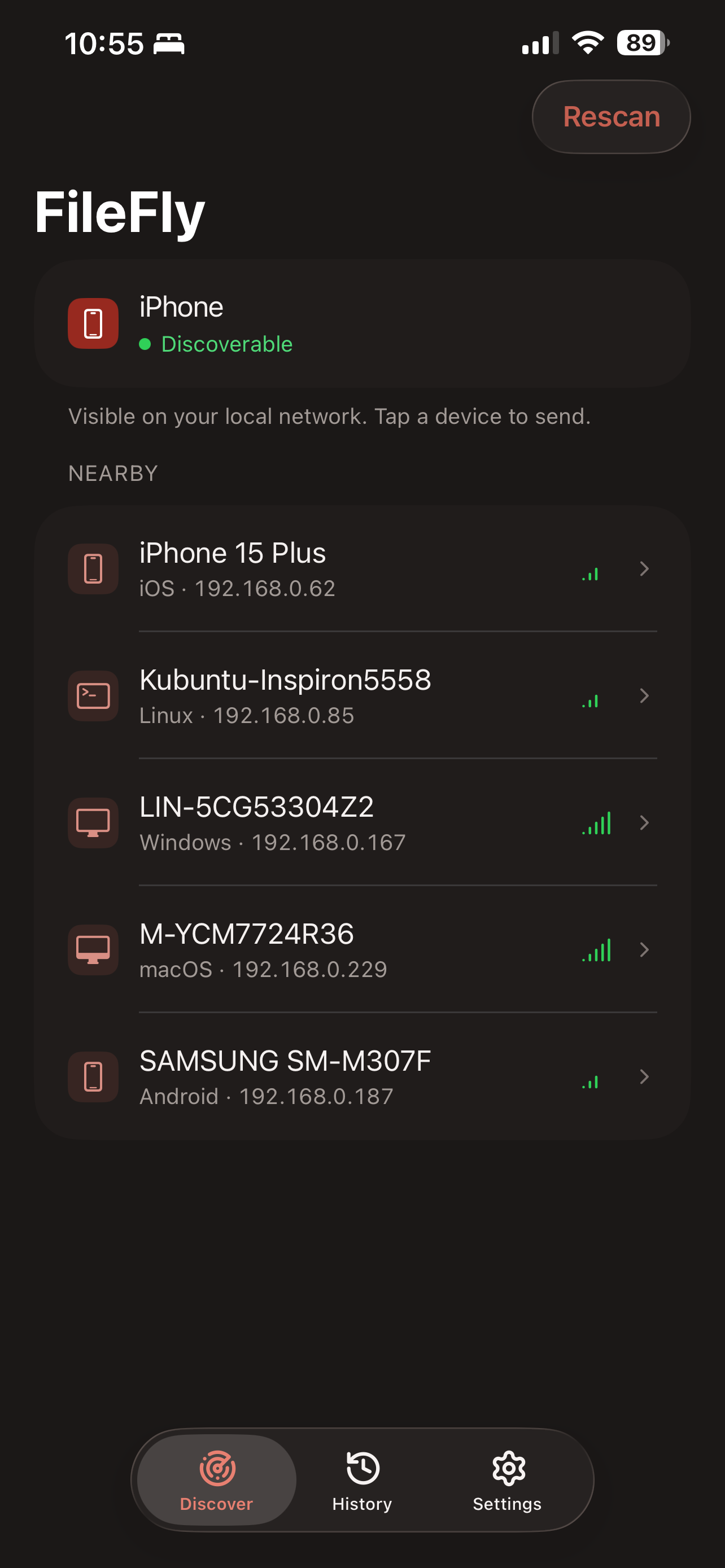
Open FileFly on both
Leave FileFly open on the computer, then open it on your iPhone. The phone should appear within a few seconds.
- 3
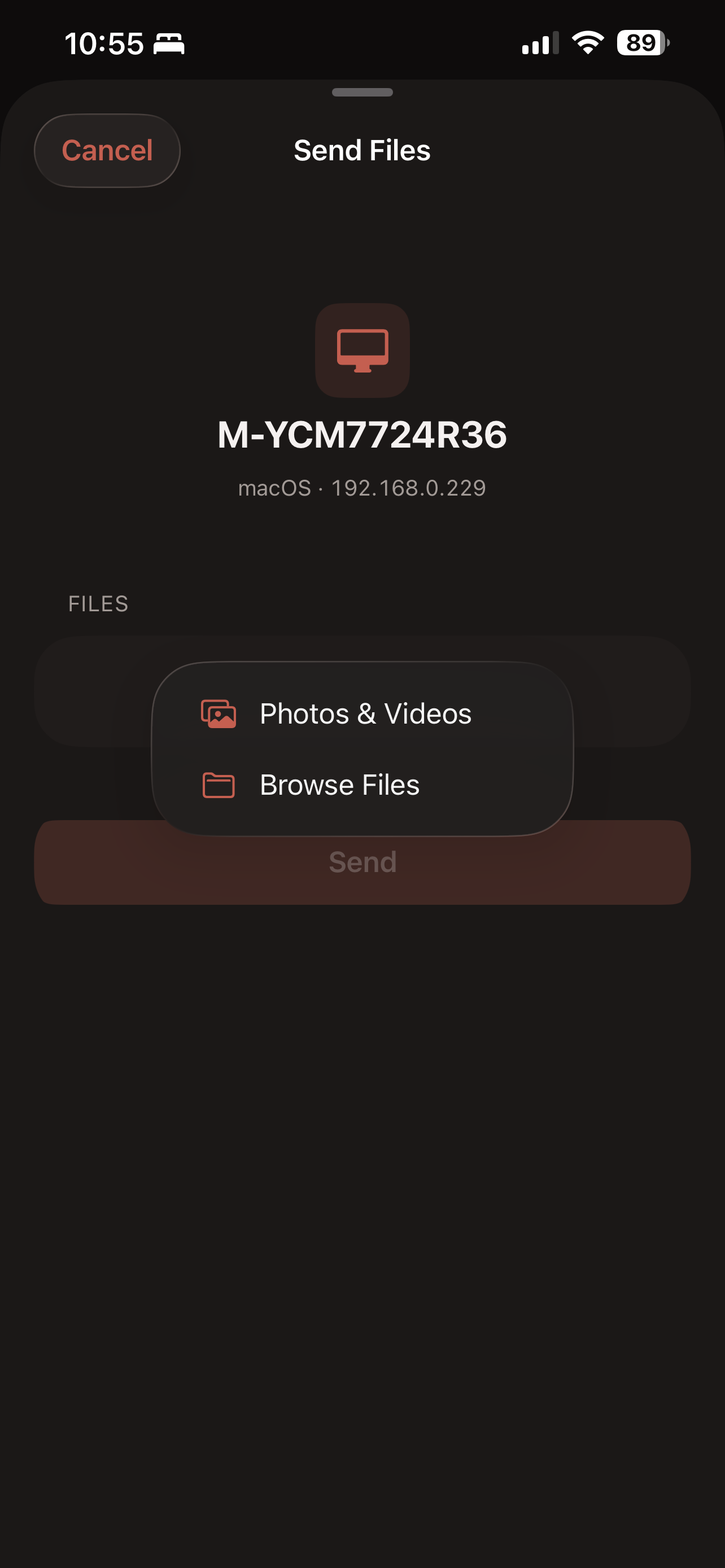
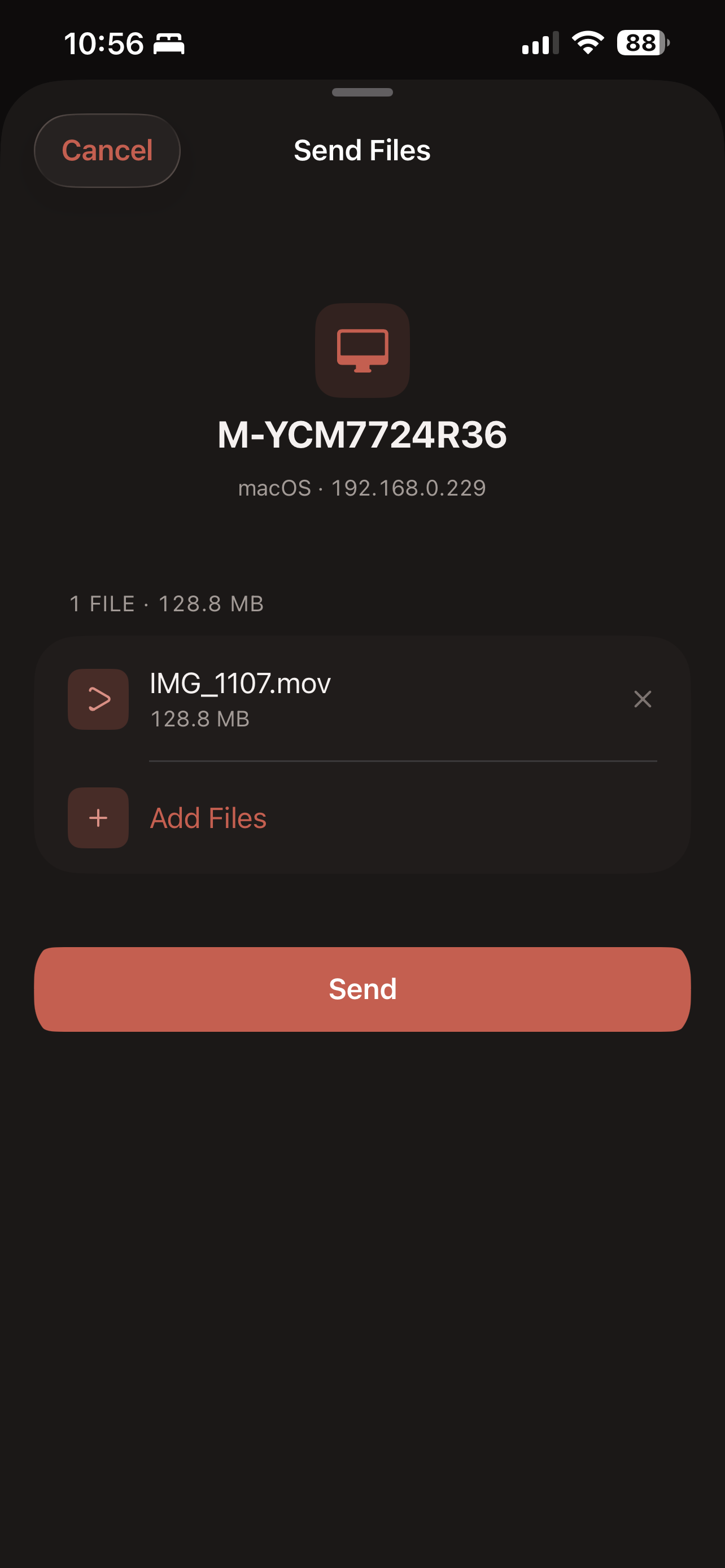
Choose the iPhone and file
Select your iPhone in FileFly and choose what to send. On Windows, allow FileFly for Private networks if the firewall asks.
- 4
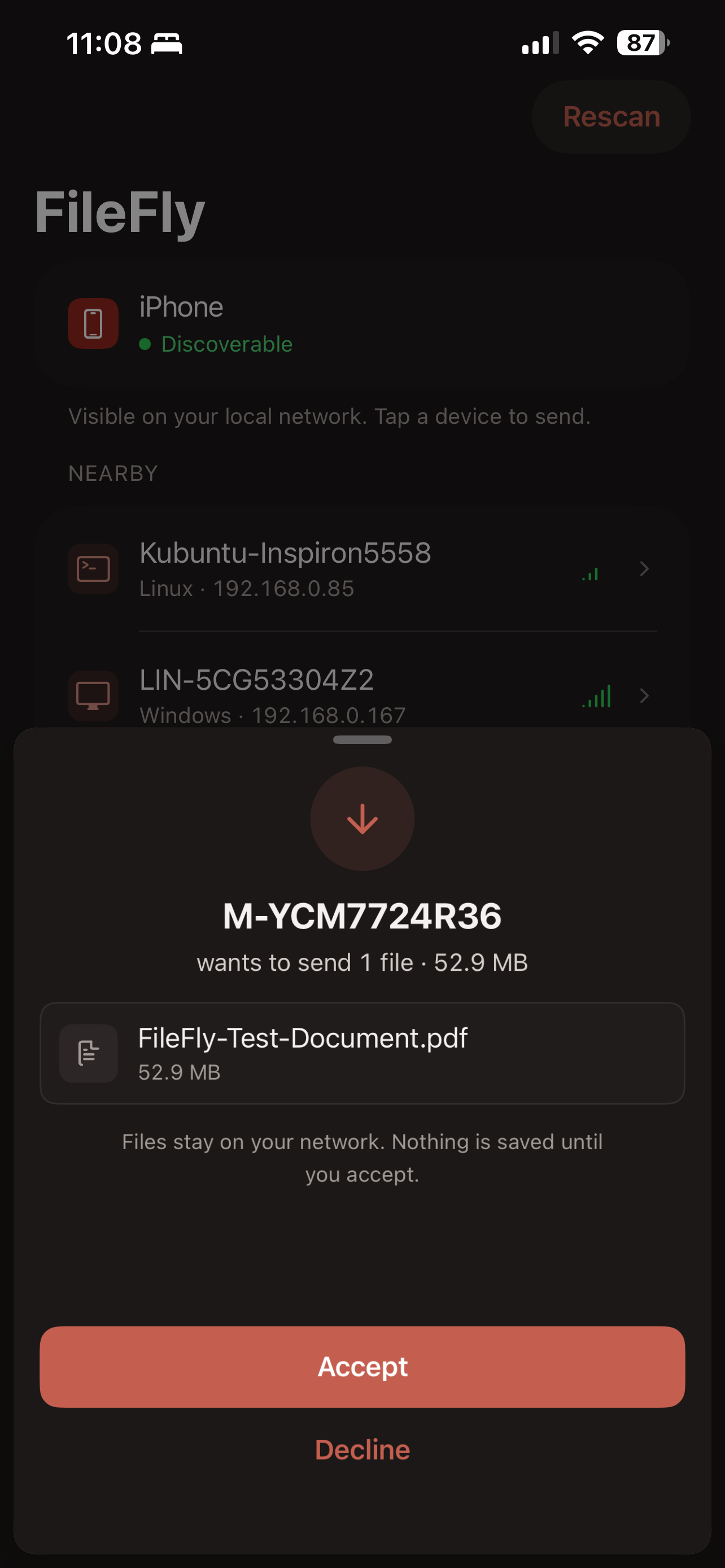
Accept it on the phone
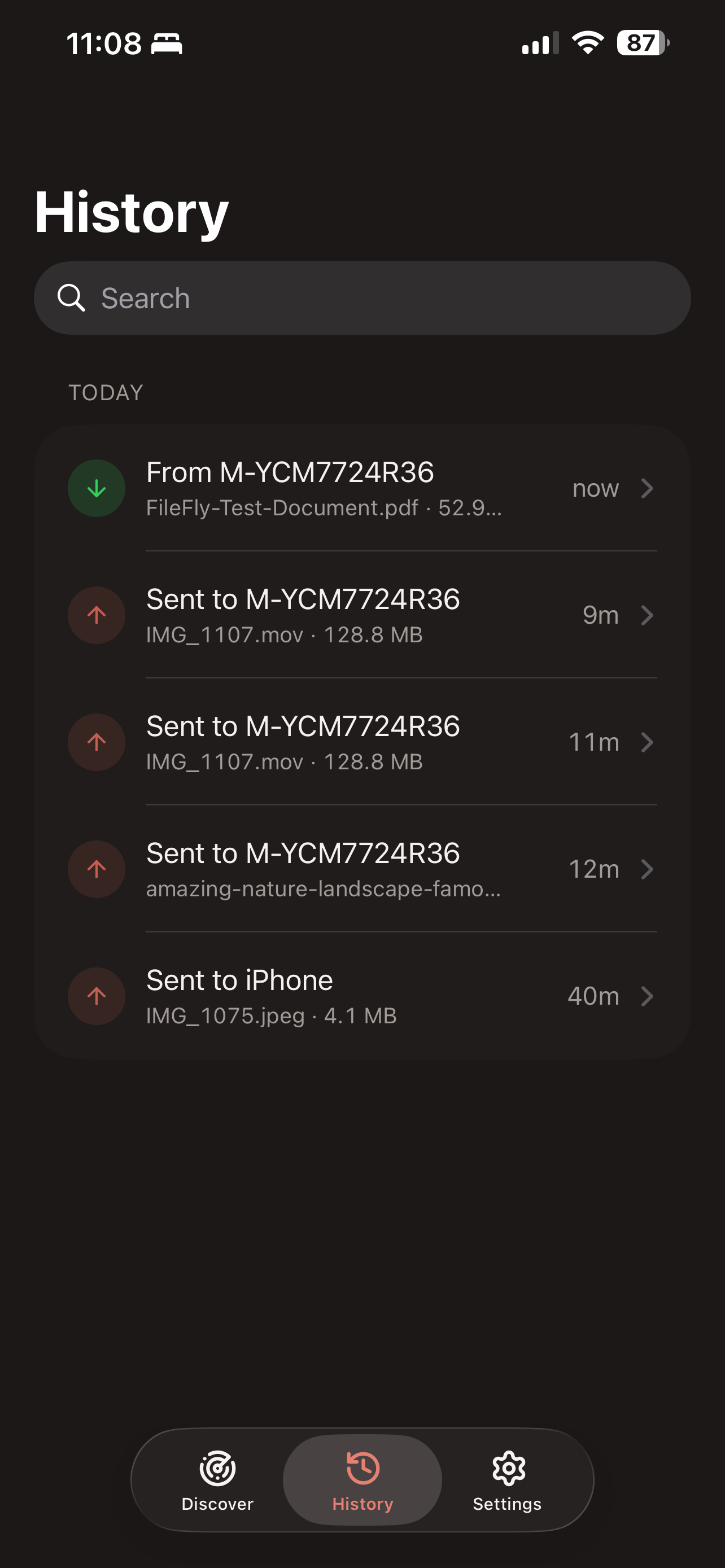
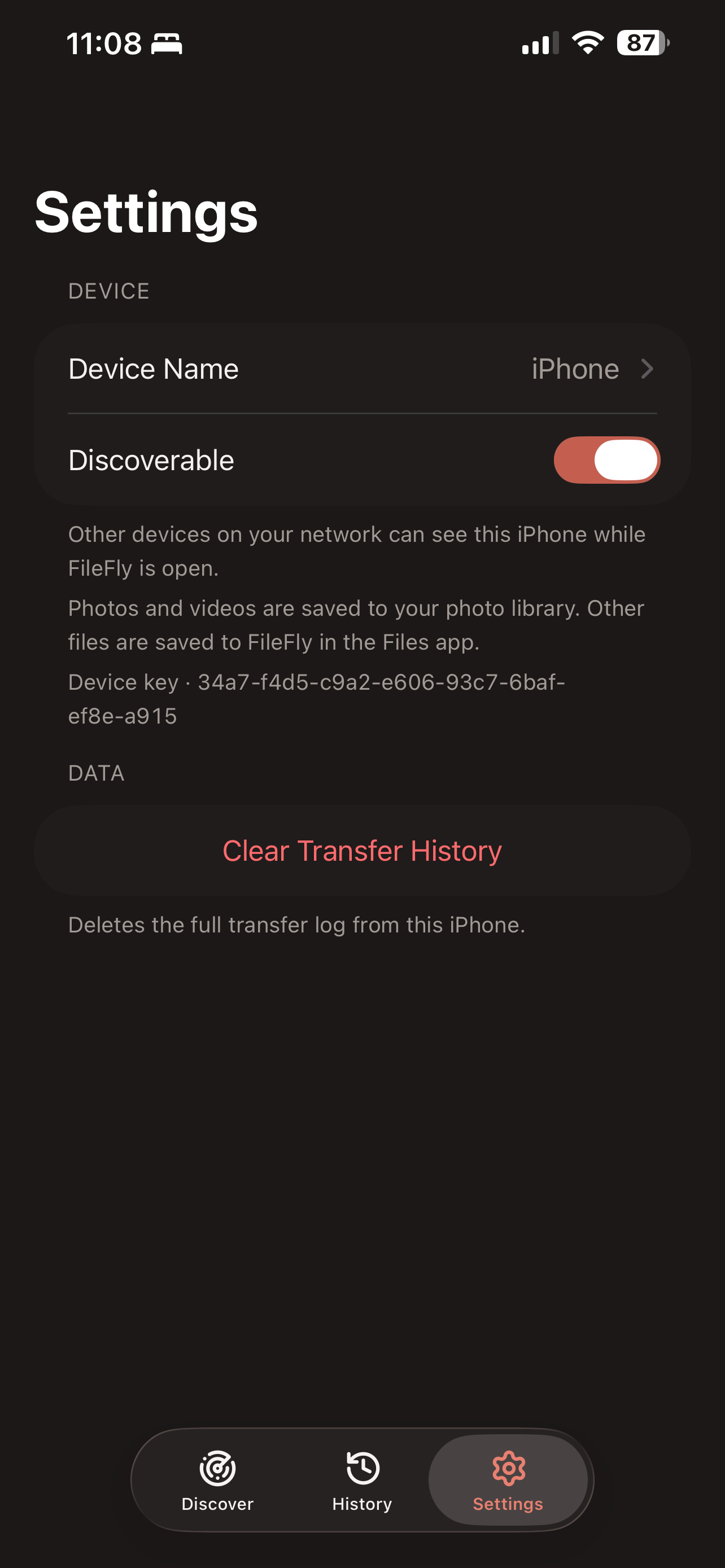
A sheet slides up on your iPhone naming the PC, the files and the total size. Tap Accept. Photos and videos are saved to your photo library; everything else goes into the FileFly folder in the Files app.